 During the pandemic, most companies realized the importance of a website.
When the lockdown lifted, businesses with an interactive website could revert to some sort of normalcy. But, the ones without a website were under tremendous pressure.
In these vulnerable times, it is essential to stay connected to your customers, and this is where a website helps.
Thanks to tools like the Bluehost website builder tool, building a website isn’t a task anymore. With this tool, building your E-com website is simple as you don’t require any technical or coding skills.
- It offers AI technology and drag & drop features that let you create your E-com website, add products, and sell them online.
- Besides, it lets you integrate with different payment platforms, so you don’t require added installations.
In the below article, we’ll look at the steps to build a business website (E-com).
Further reading: How to Purchase a Domain Name and Hosting With Bluehost
What is the Bluehost Website Builder Tool?
Bluehost Website Builder is an excellent tool for everyone who wants to build a professional-looking WordPress website. You require no coding or technical knowledge to use this website creation tool. The standard website builder plan is ideal for personal websites and blogs, while the eCommerce plan can help you set up an online store. Both plans offer a free domain name (for 1-year) and a free SSL certificate. Some of its features include mobile-responsive smart AI themes, a free stock image library, drag & drop builder, among others.
- What is the Bluehost Website Builder Tool?
- A. How to Build an E-Com Website with Bluehost Website Builder
- Step 1: Select a Plan and Purchase Domain & Hosting
- Step 2: Login to Your Bluehost Account
- Step 3: Use Smart Website Building Page
- Step 4: Fill in the Queries
- Step 5: Add Cover Image and Logo
- Step 6: Font and Colour Scheme
- Step 7: Website Navigation
- Step 8: Add Contact Information
- Step 9: Add Products
- Step 10: Payment and Other Features
- Change starts with the right website builder tool,
A. How to Build an E-Com Website with Bluehost Website Builder
Step 1: Select a Plan and Purchase Domain & Hosting
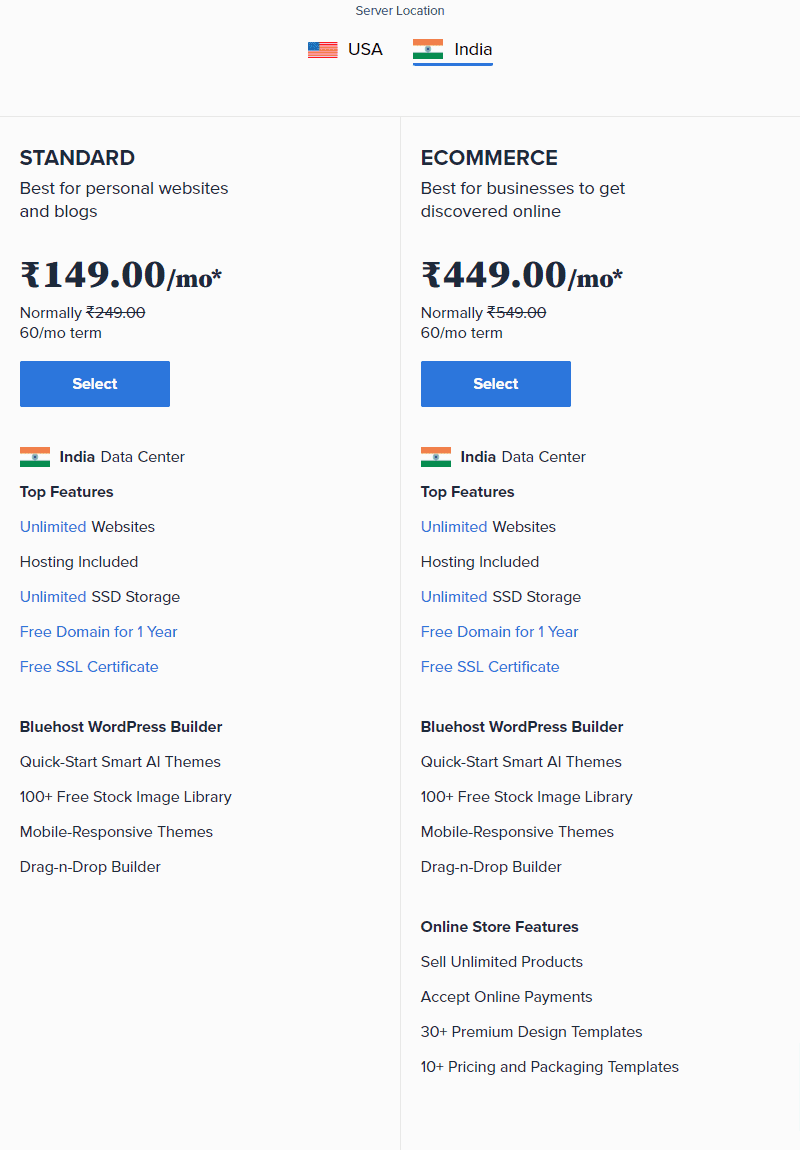
Head to the Bluehost website page builder and choose your location and plan. Once you select a plan, you will be redirected to the domain registration page.
Here, enter the domain name or register a new one (the domain name is free with the hosting package). Next, purchase a suitable web hosting plan to build a site. Use Bluehost Coupons to buy a web hosting package.
Step 2: Login to Your Bluehost Account
Once you purchase the website builder plan, it is time to use your credentials to log in to your Bluehost account. After entering your login credentials, you will be redirected to the Bluehost cPanel dashboard.
Step 3: Use Smart Website Building Page
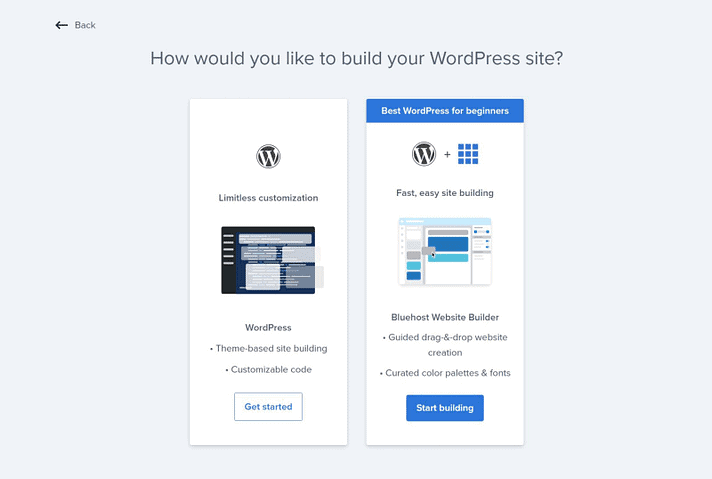
If you have no idea about building a website, the site will redirect you to a ‘smart’ website building page. Here, you have the option of creating a website for E-com-powered website.
Step 4: Fill in the Queries
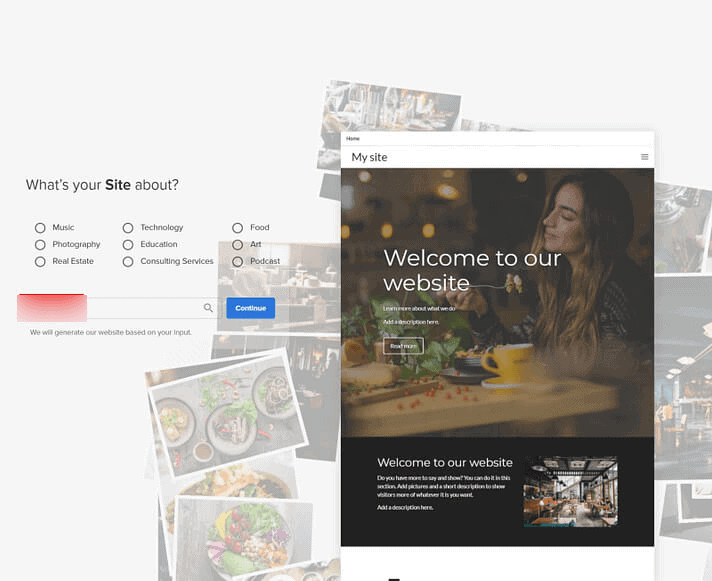
Now, the Smart AI option in the builder tool will ask you some questions related to your site. Based on your experience, you can select an option and continue. Here, you can click the start building option to create your WordPress-powered E-com website with the help of Bluehost website builder.
Furthermore, answer all questions. Select ‘your site option’, and if it is not available, search with the right keyword. Enter the name of your website when promoted. For example, you can name your site – ‘The Ideal Shop.’ Now, click on ‘Continue’.
Step 5: Add Cover Image and Logo
It’s time to add a cover image for your site. Upload an image from your system or choose from the stock photos on the website builder tool. Once you select a cover image, click on continue. Generally, a website cover image is automatically selected based on the keyword you choose. Now, upload your logo. Once the logo is added, click ‘proceed’.
Step 6: Font and Colour Scheme
It’s time to select the display font for your website. Bluehost website builder tool offers many fonts, so choose the one appropriate for your site. Click on the font style and continue with the process. Colour scheme plays a vital part in a website. Here, it is divided into two parts – brand colours and content style. You can choose a colour scheme based on the brand logo and continue to the next step.
After you select a suitable colour scheme, choose a navigation style. Here, you will have an option of five different styles. Choose a style that complements your site and proceed to the next step.
Step 8: Add Contact Information
It is time to add relevant contact information to the footer section of your website. After which, add all details and click Finish to complete the whole site setup. Once your setup is complete, the page will redirect you to the website builder dashboard. This process may take a longer time, so have patience.
Step 9: Add Products
Once your site is ready, the tool will redirect you to the Bluehost website builder backend. Here, make changes to your site and add products you wish to sell.
Click add a section to add products to your home page. Or else, you can create a brand new page where you can add products. Click on menus or pages to add a new page.
Select relevant details and describe your page. Once your page is added – add new products – check on the product option to get started. Moreover, you can choose the drag & drop feature for product placement, and edit the elements on the right side of the bar based on your choice.
Step 10: Payment and Other Features
Add the payment option with the product display. Here, you have the PayPal option. Edit the PayPal section with the drag and drop design feature.
Next, change the name of the store by clicking on menus and settings. Once you design your online store, check-in the preview section to see how your website appears. After examining the display on mobile and desktop, click ‘Publish’.
Apart from this, the website builder tool lets you add a blog, email section, marketing, and social media buttons. Moreover, site management is simple with the Bluehost dashboard option. Use the ‘my sites’ tab and click on ‘manage my sites’ to modify changes.
Further reading: Web Hosting vs Domain Name
Change starts with the right website builder tool,
With the Bluehost WordPress website builder tool, you can also build a WordPress site in no time. This tool allows you to create highly functional sites in minutes using AI technology and an intuitive interface.
- With the quick-start templates, you can choose templates faster than you think.
- The real-time editing feature allows you to edit your business website pages without codes.
- Designing a website with AI features makes sure that your site looks great on mobile and desktop platforms.
The tool lets you build a site that grows as your business expands, leveraging the full capacity. It offers great features like mobile-ready templates, simple editing, stock image library, customized CSS, custom fonts, and unlimited product uploads.
A Bluehost website builder is an essential tool to create a professional-looking site, regardless of your business needs. Lastly, it lets you upgrade from a standard plan to a feature-rich plan to help your website grow.





Leave a Reply